What Trend Mode does
Trend Mode helps stock creators find concepts that are actually trending right now — pulled from major news and community sources (Bluesky, Hacker News, Google News) — and turn them into prompts ready for stock-image generation. Unlike brainstorming from scratch, Trend Mode starts from what people are actually talking about. Less risk that your work misses the market, because you're starting from real buyer signal. The result: prompts that come with built-in demand — not just pretty images floating in a vacuum, but images stock buyers are searching for right now.
Note: Trend Mode is free with any active BatchForce license — 5 system uses per day, or add your own Anthropic API key for unlimited use.
How to use it
Pick a category and time window
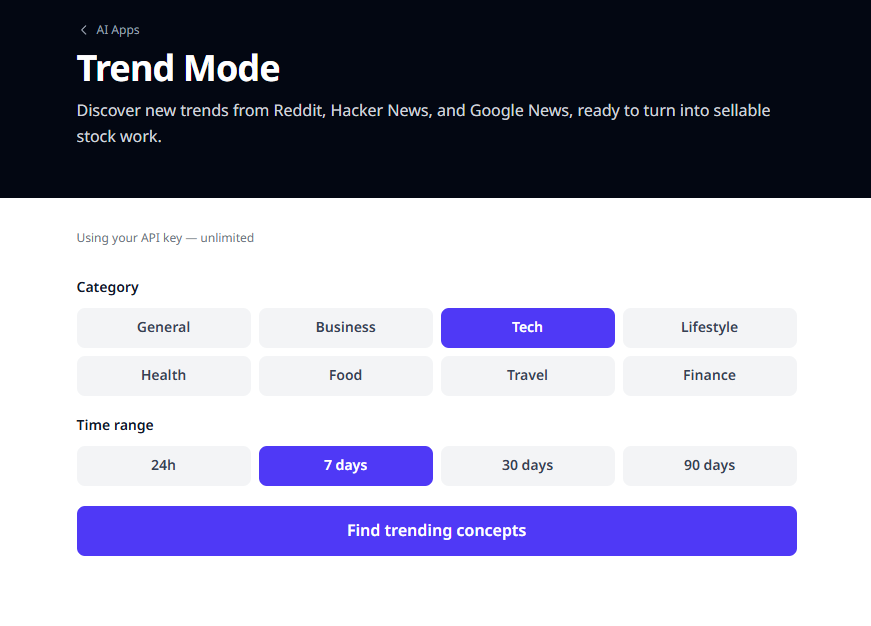
Pick the category that matches your niche — 8 options: General / Business / Tech / Lifestyle / Health / Food / Travel / Finance. Then pick a time window: - 24h = freshest but volatile - 7d = best balance, recommended for stock work - 30d / 90d = sustained trends, longer-term picture Click 'Find trending concepts'.
Review the trending concepts
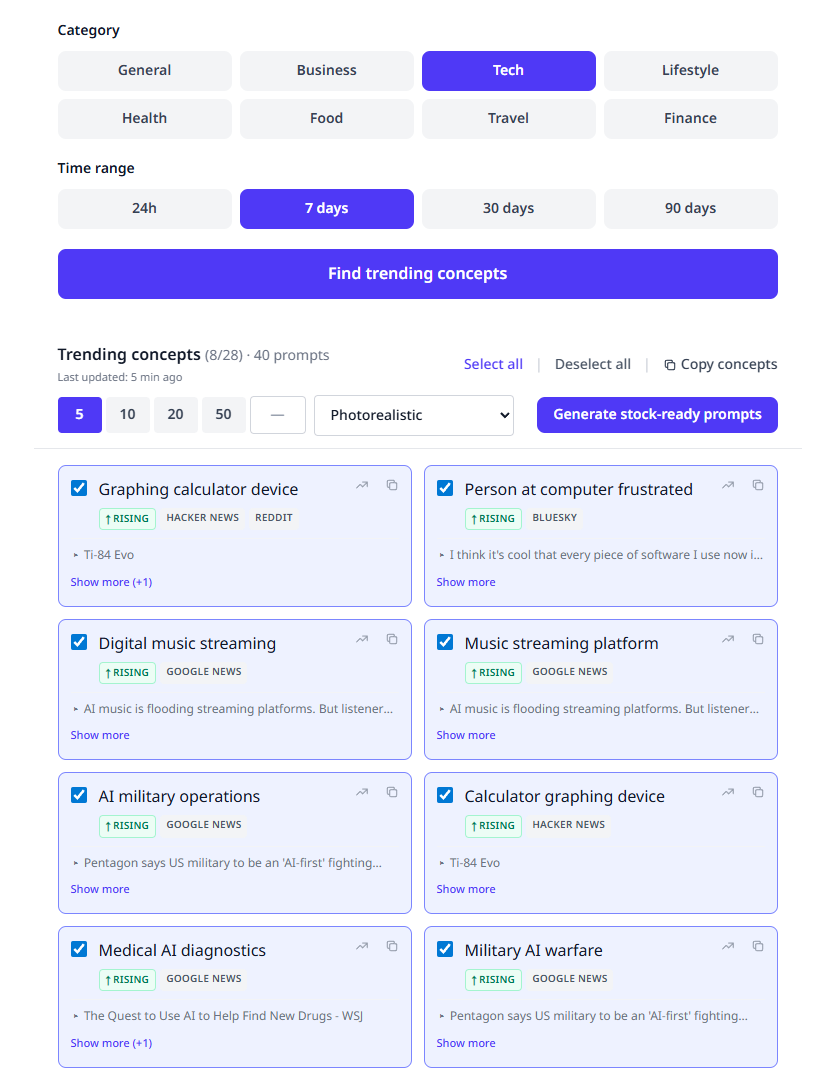
The app pulls the latest concepts from Bluesky, Hacker News, and Google News. Each card shows: - The concept name (e.g. 'AI server room operations') - Where it came from (BLUESKY / HACKER NEWS / GOOGLE NEWS) - Sample headlines or posts behind it (click 'See more' for additional examples) Concepts that appear in multiple sources at once are the strongest signal — broad interest across communities, not just one place.
Pick the concepts you want
Check the concepts that fit your niche — you don't have to take them all. Pick what works. Look for the green "↑ Rising" badge first — it means Wikipedia search demand for the topic has been climbing in the last 7 days vs the prior 21. These are stronger candidates than concepts without the badge. The small chart icon next to a concept opens Google Trends to double-check before committing — useful when you want to verify the Wikipedia signal against actual search behavior.
Set prompts per concept and style
Choose: Prompts per concept: 5 / 10 / 20 / 50 (5 is a good starting point). Style: Photorealistic / Illustration / 3D Render / Flat Vector / Watercolor / Isolated Object. Click 'Generate stock-ready prompts'.
Copy or download the results
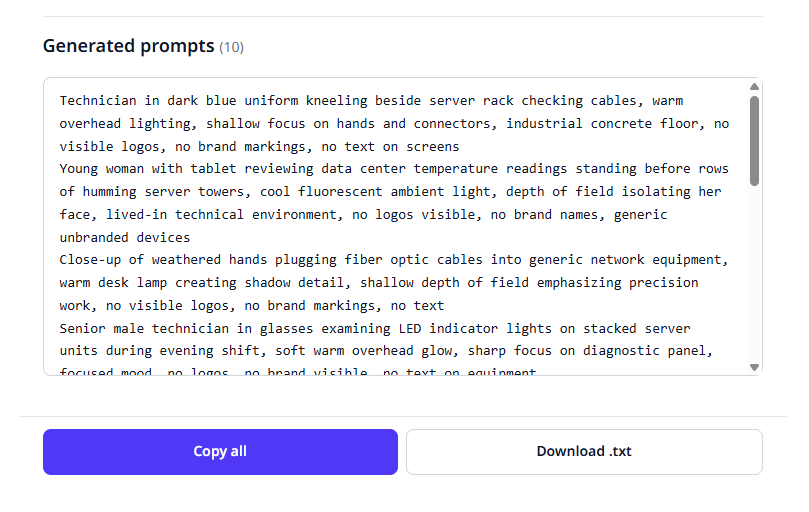
All prompts appear in a single text box — click 'Copy all' or 'Download .txt' and feed them straight into the AI image generator you already use. Every prompt is built to be stock-safe: no brand names, no logos, no template feel.
Tips
Tip: trending topics move fast — generate and upload within a few days to catch the wave. The buyers searching the trending term right now are your best customers.
Tip: Take the concepts you picked here over to as Main Concepts. The Titles, Descriptions, and Keywords come out sharper — and more sellable.
Tip: Run the generated prompts through the . You'll generate images faster and visibly cut workflow time.