What Stock Filter does
Stock Filter reviews your generated images before you upload them to stock platforms — and flags the ones likely to fail review (visible logos, watermarks, embedded text, NSFW content, or AI artifacts like malformed hands). Manually scanning 100 images for a tiny corner logo is tedious and easy to miss. One overlooked reject can pull down your whole submission's acceptance rate. Stock Filter does that scan in seconds, gives each image a Pass / Warning / Reject verdict, and lets you download only the safe ones as a ZIP.
Note: Stock Filter is free with any active BatchForce license — 5 images per day on the system key, or add your own Anthropic API key for unlimited use.
How to use it
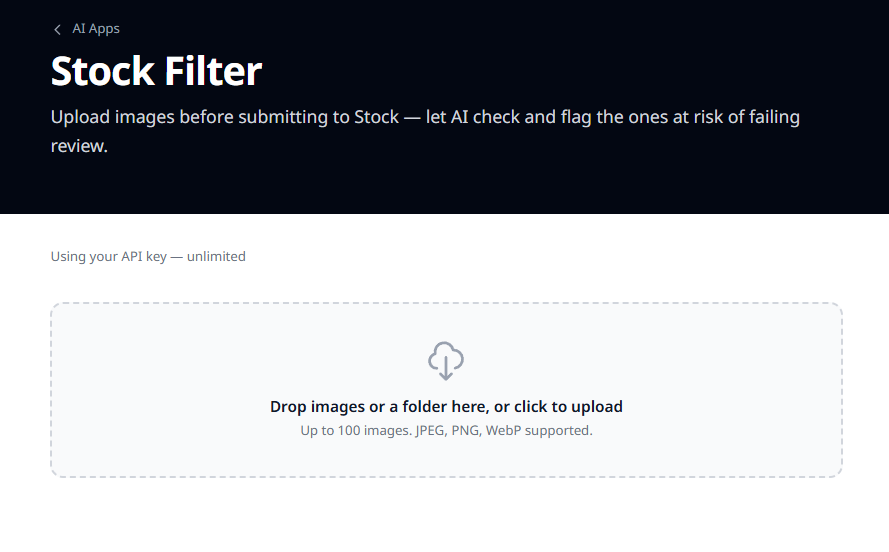
Drop in your images
Drag a folder or individual images into the upload zone, or click to pick from disk. Up to 100 images per batch, JPEG / PNG / WebP supported. Dropping a folder grabs every image at the top level — subfolders are skipped, so each folder you drop is treated as a self-contained set.
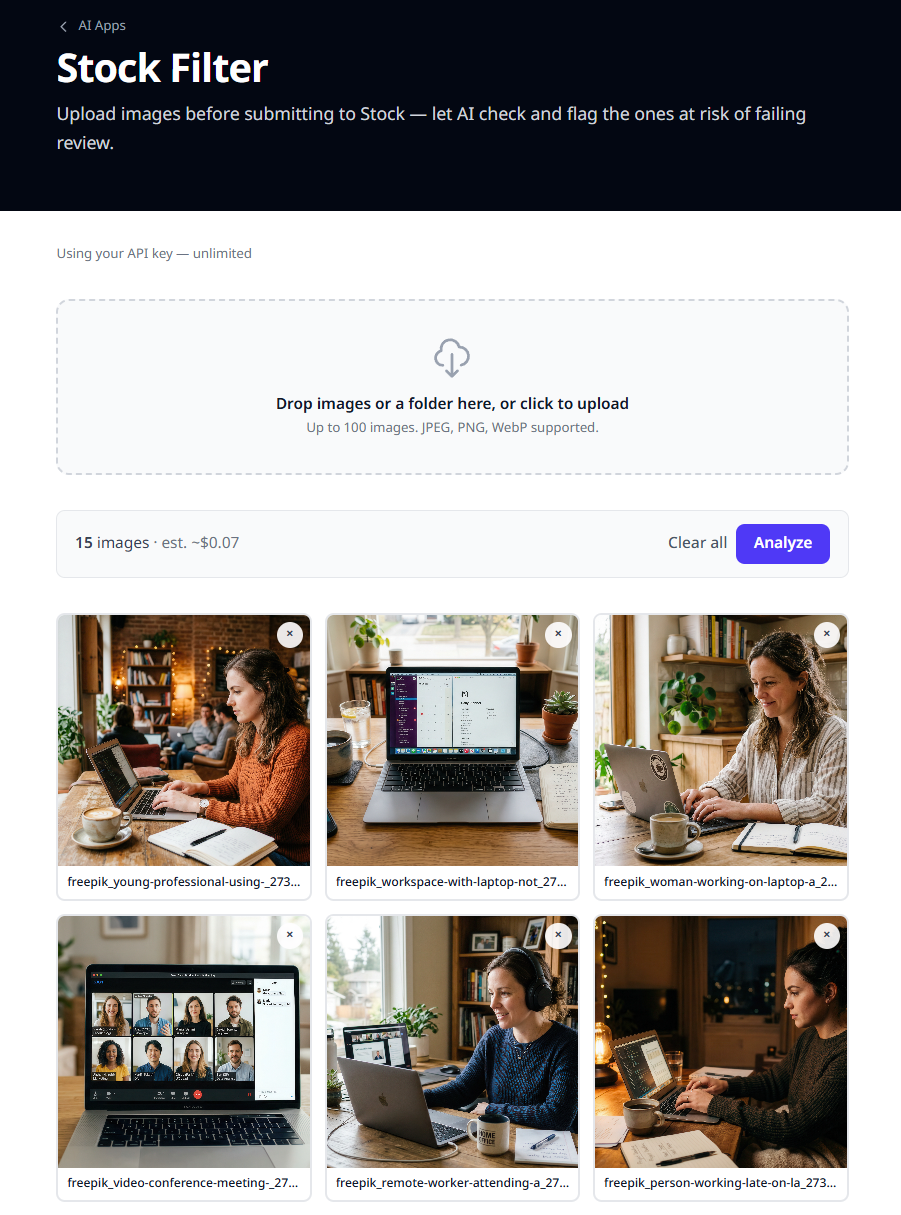
Click Analyze
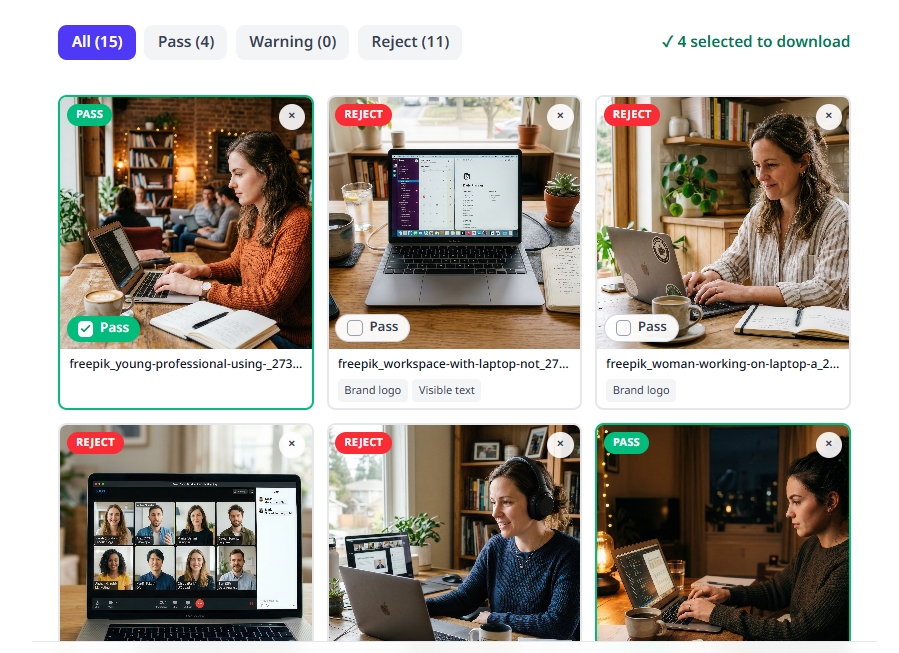
The app resizes each image client-side, then sends them to Claude (Anthropic's vision model) to flag stock-platform issues: - Visible text, logos, watermarks, NSFW → REJECT (red) - AI artifacts on hands / faces / objects, low quality → WARNING (amber) - Clean → PASS (green) Results stream in as each image finishes. The cost estimate above the button tells you what the batch will cost on Anthropic before you commit.
Review and override the AI verdict yourself
Use the All / Pass / Warning / Reject tabs to quickly filter images by what the AI flagged. The system pre-sorts your images automatically and shows a Pass / Warning / Reject status — but the final call is always yours. If the AI got something wrong, just tick or untick the image to make your own decision before the real upload. Click any image to open a full-size preview where you can zoom in for closer inspection — useful for catching logos, text, AI artifacts, or any small detail you might otherwise miss.
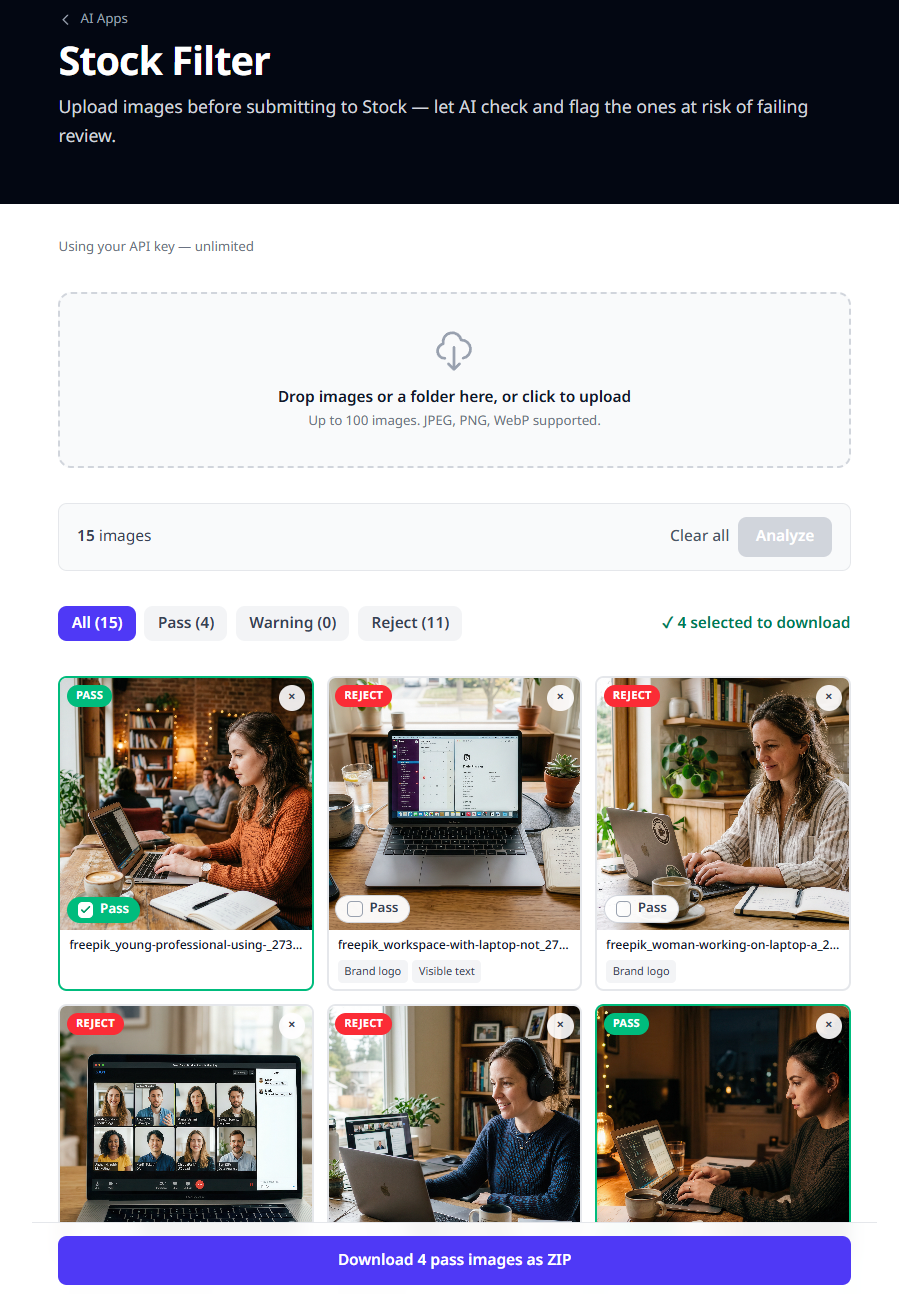
Download what passed
The bottom button packages every image you've ticked Pass into a single ZIP — ready to drop into your stock submission folder. Filenames are preserved; the ZIP just leaves out the rejects you didn't want.
Tips
Tip: Run Stock Filter on every batch before submission. The minute it takes is far cheaper than the multi-day acceptance hit from one rejected logo image.
Tip: If you generated images using prompts from or , Stock Filter is the natural last step before upload — close the loop on the AI Apps workflow.
Tip: Add your Anthropic API key in to remove the 5/day cap and pick your model (Haiku for speed and cost, Sonnet/Opus for tougher judgement calls).